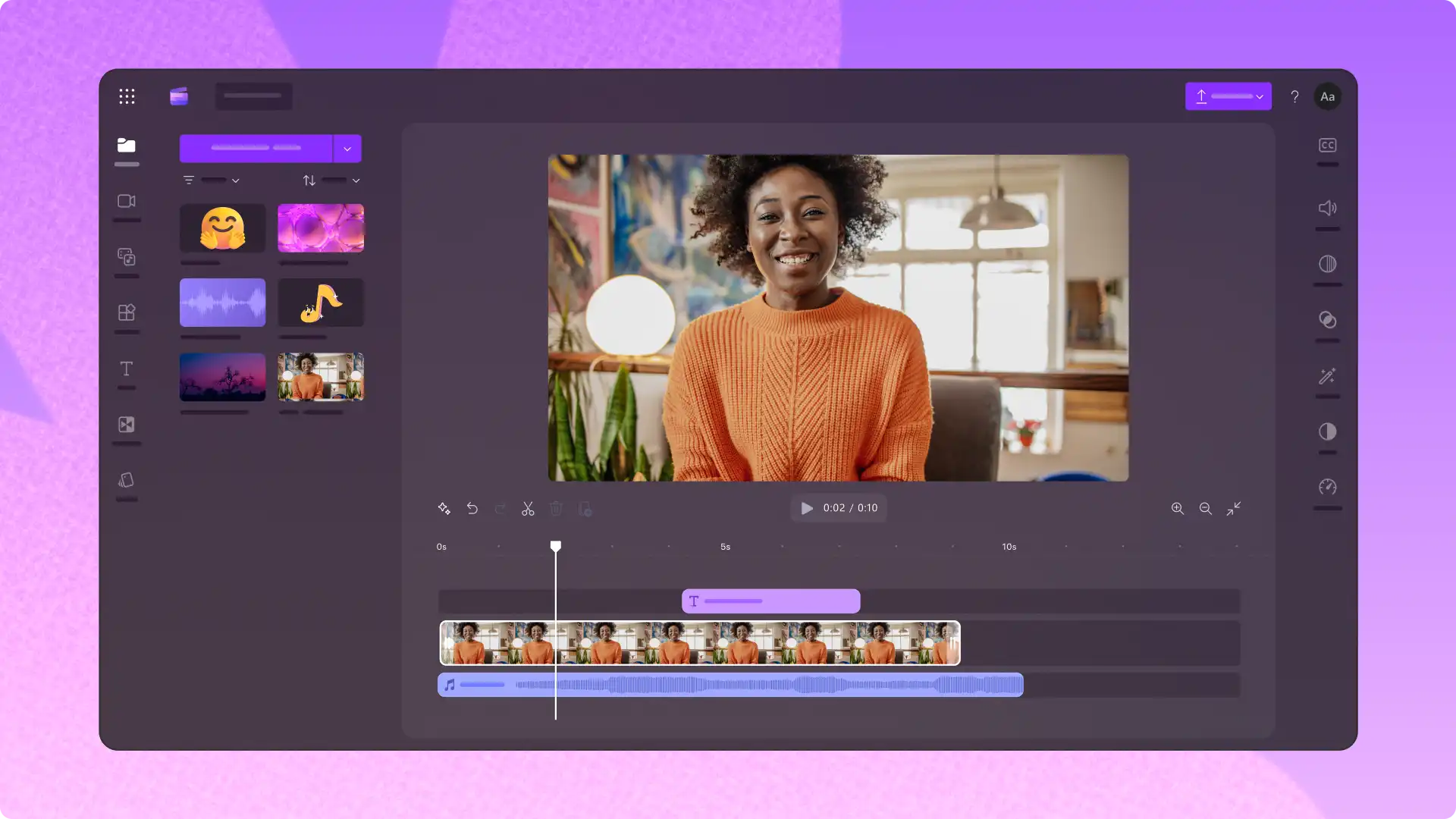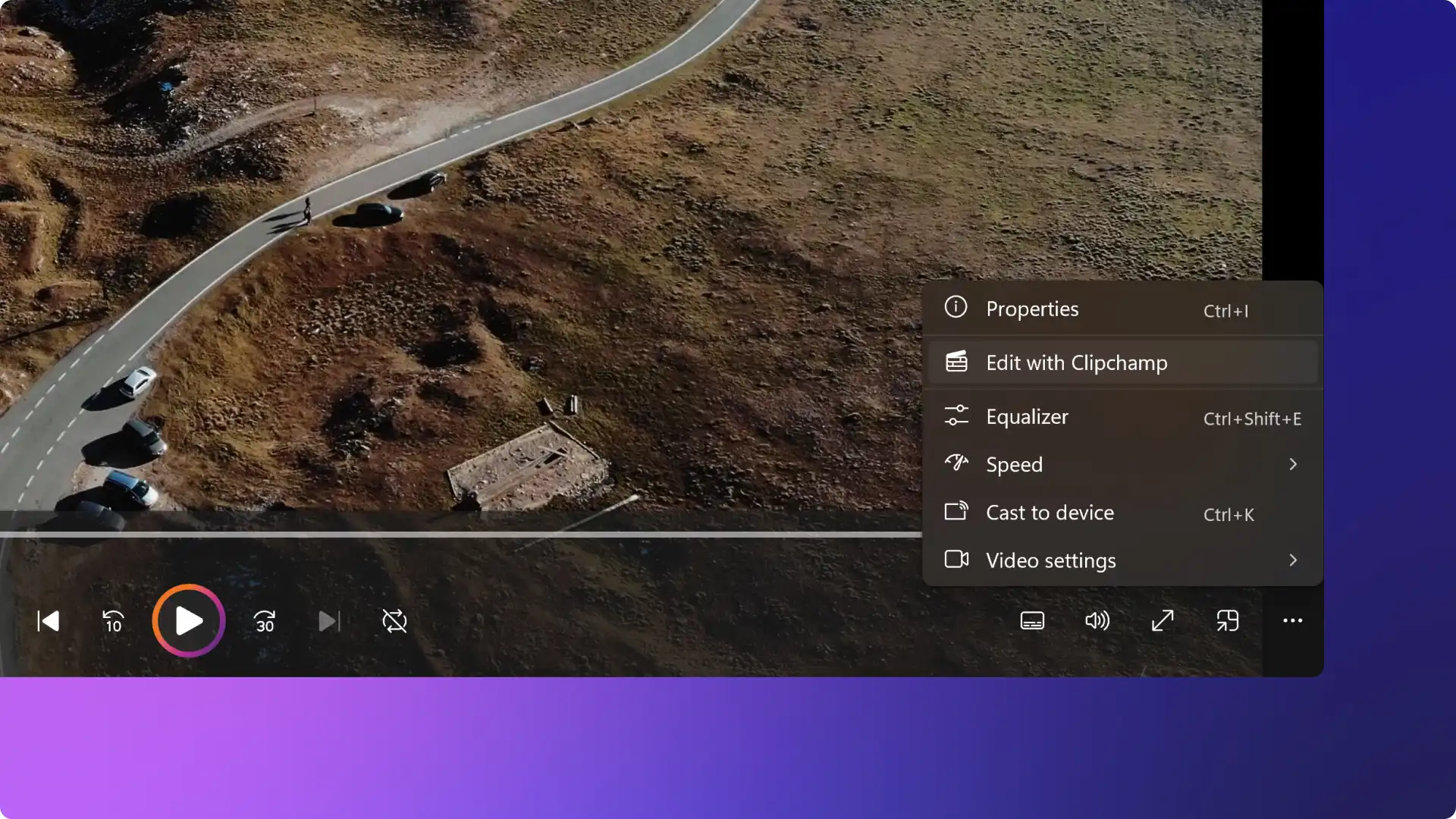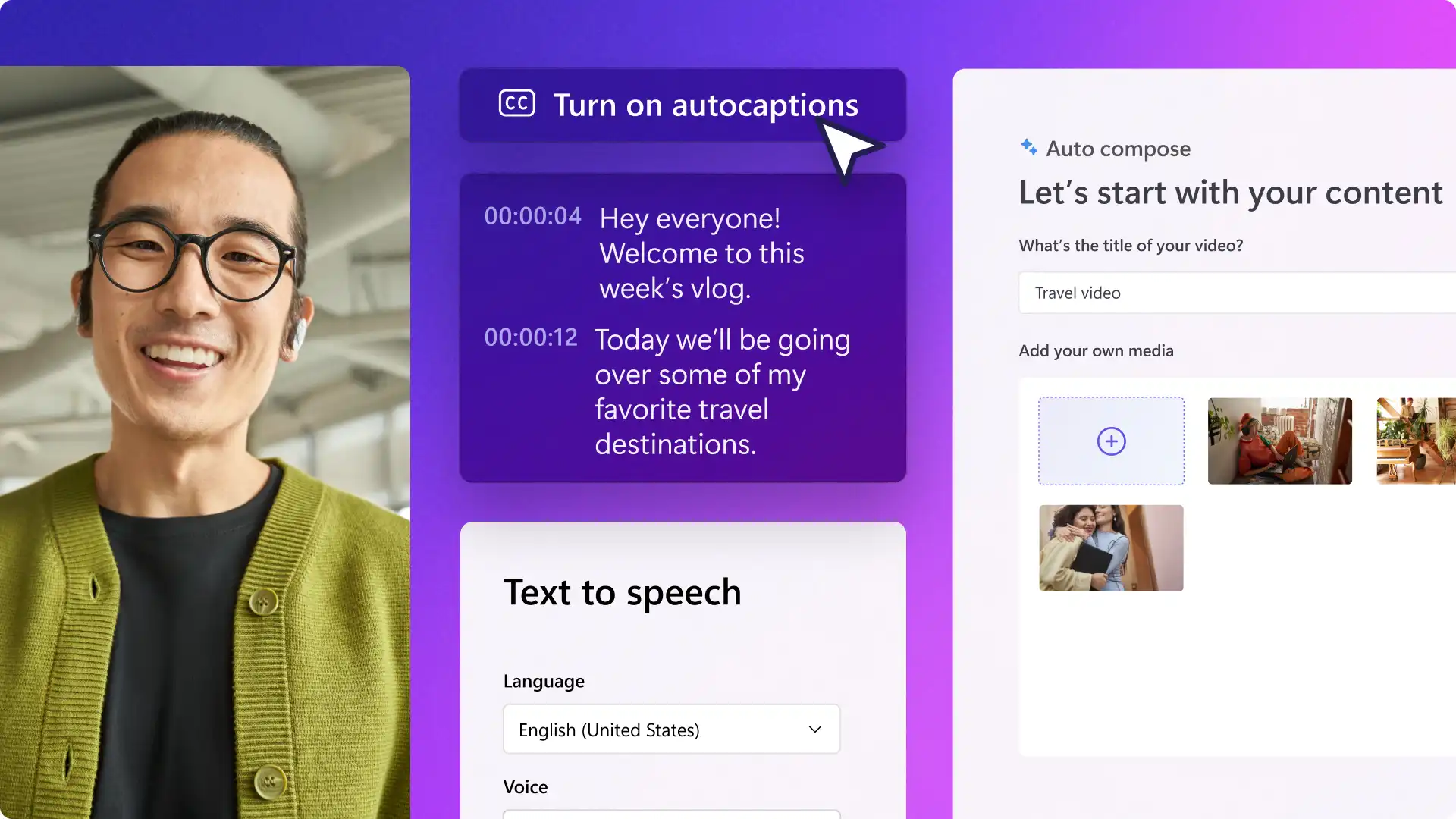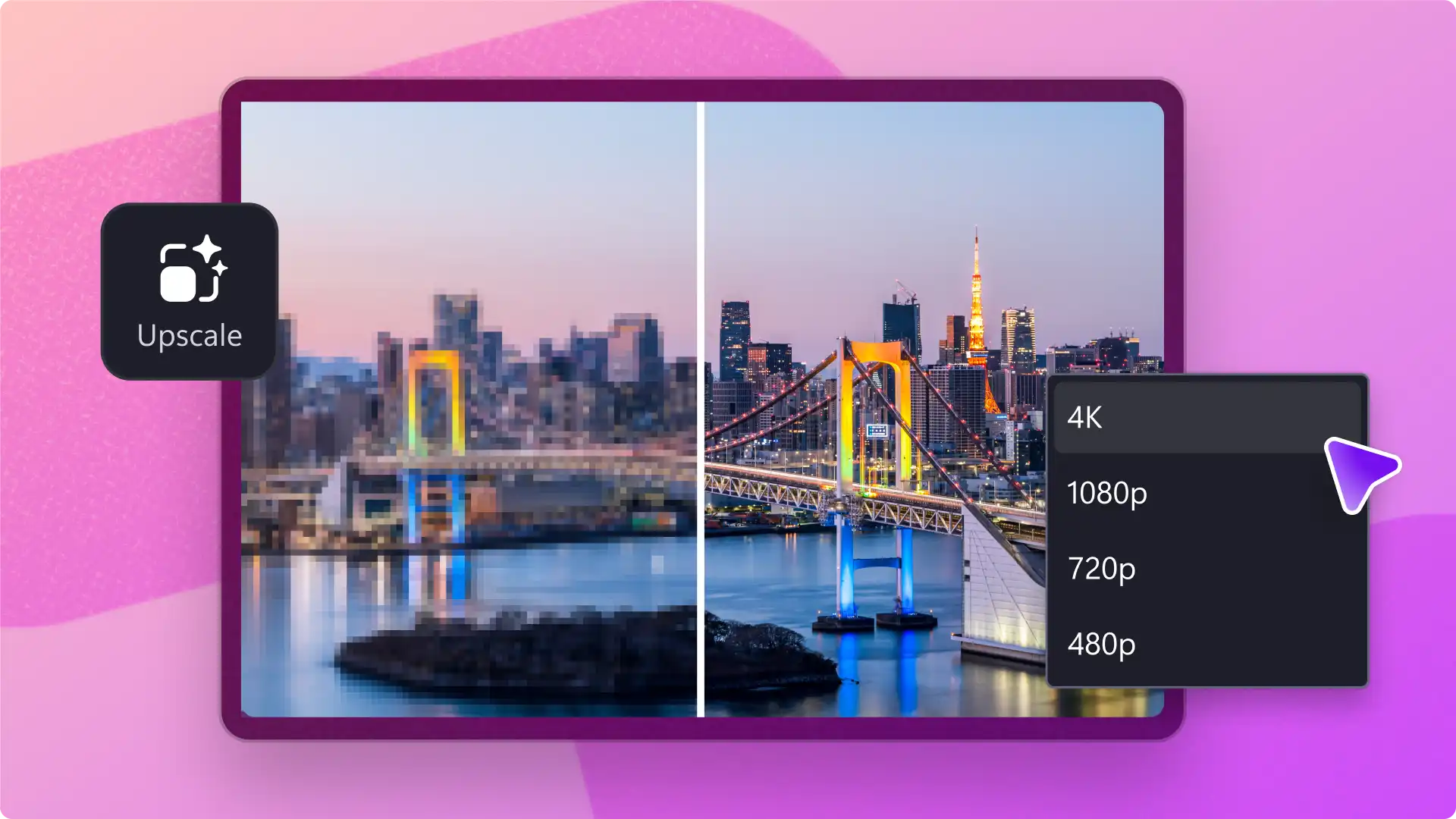
Make low resolution videos look sharper and clearer with AI-powered video upscaling in the Microsoft Clipchamp Windows app. Improve old phone videos or transform webcam recordings by upscaling the footage to a higher resolution, such as 1080p and 4K.
There’s no need to upload anything to cloud as all processing happens securely on the Windows device. Learn how to use the video upscale feature in the Clipchamp Windows app.
How does AI video upscaling in Clipchamp work?
Clipchamp uses AI-powered Video Super Resolution to create a higher resolution copy of a video and add visual details to it. It enhances low quality or compressed footage to look clearer, but it can’t restore details that weren’t captured in the original video.
The AI upscaling process happens directly in an eligible Windows device without any cloud tokens, making the original footage usable without leaving the editor or re-recording content.
How to upscale a video on the Clipchamp Windows app
Step 1. Import video and add to timeline
Open the Microsoft Clipchamp Windows app and create a new video.
To upload a video, click on the import media button in the your media tab on the toolbar and browse computer files, or connect OneDrive.
Note: this feature is available to use in the Microsoft Clipchamp Windows desktop app for personal and work accounts, however it is unavailable in the browser.
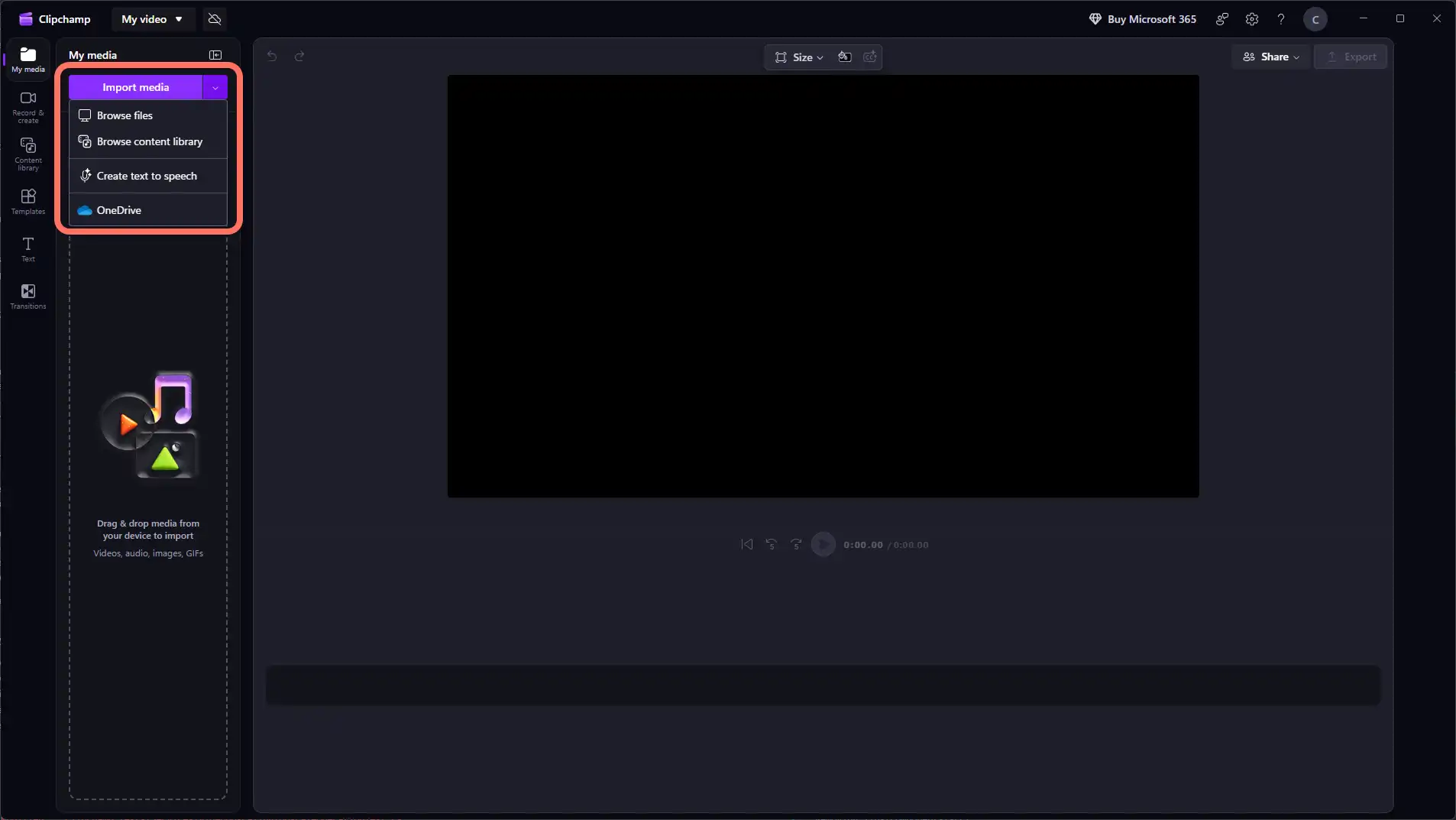
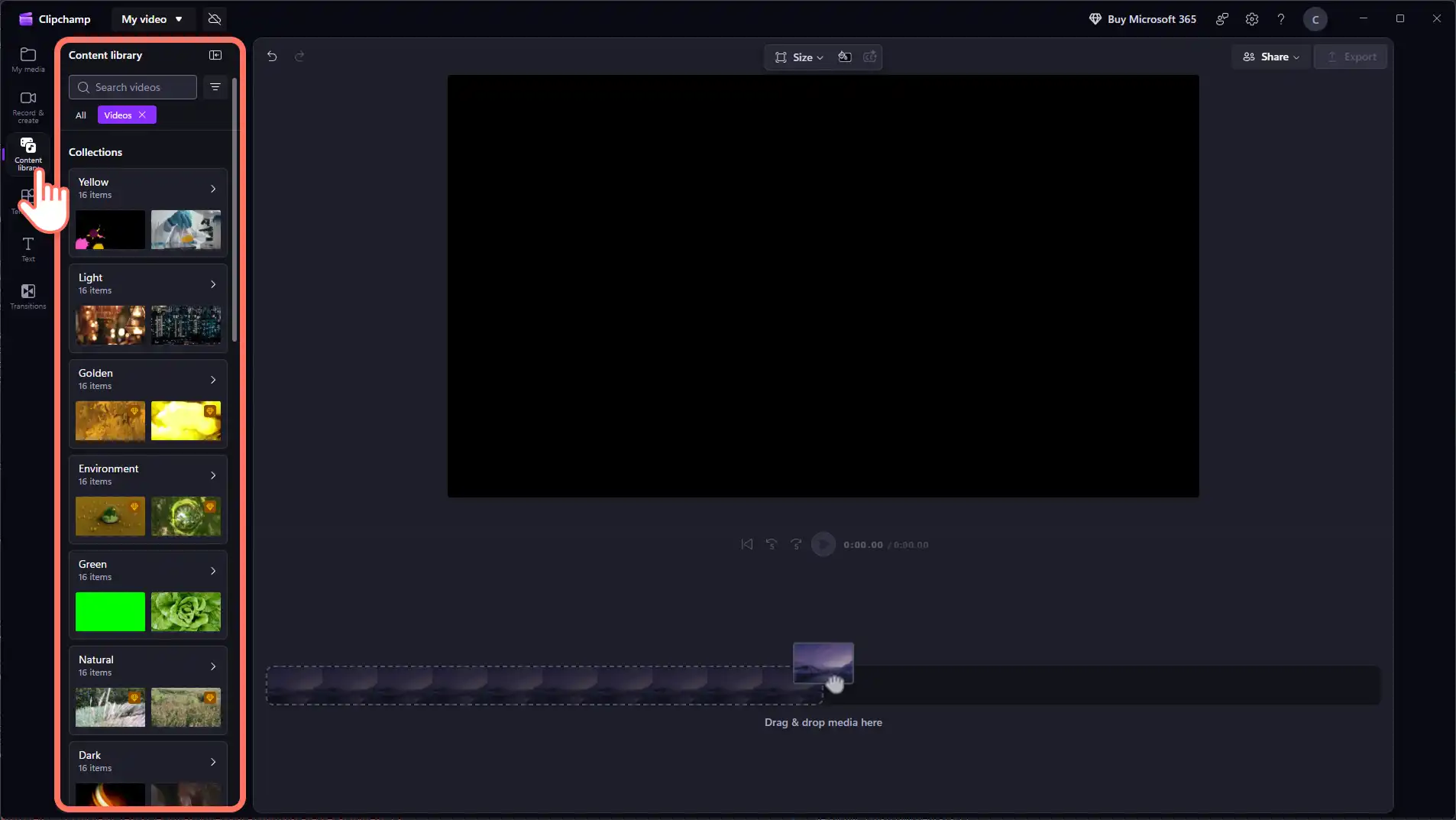
Alternatively, use royalty-free stock footage to create a video. Click on the content library tab on the toolbar and click on the visuals drop down arrow, then videos. Browse the different stock collections using the search bar as well.
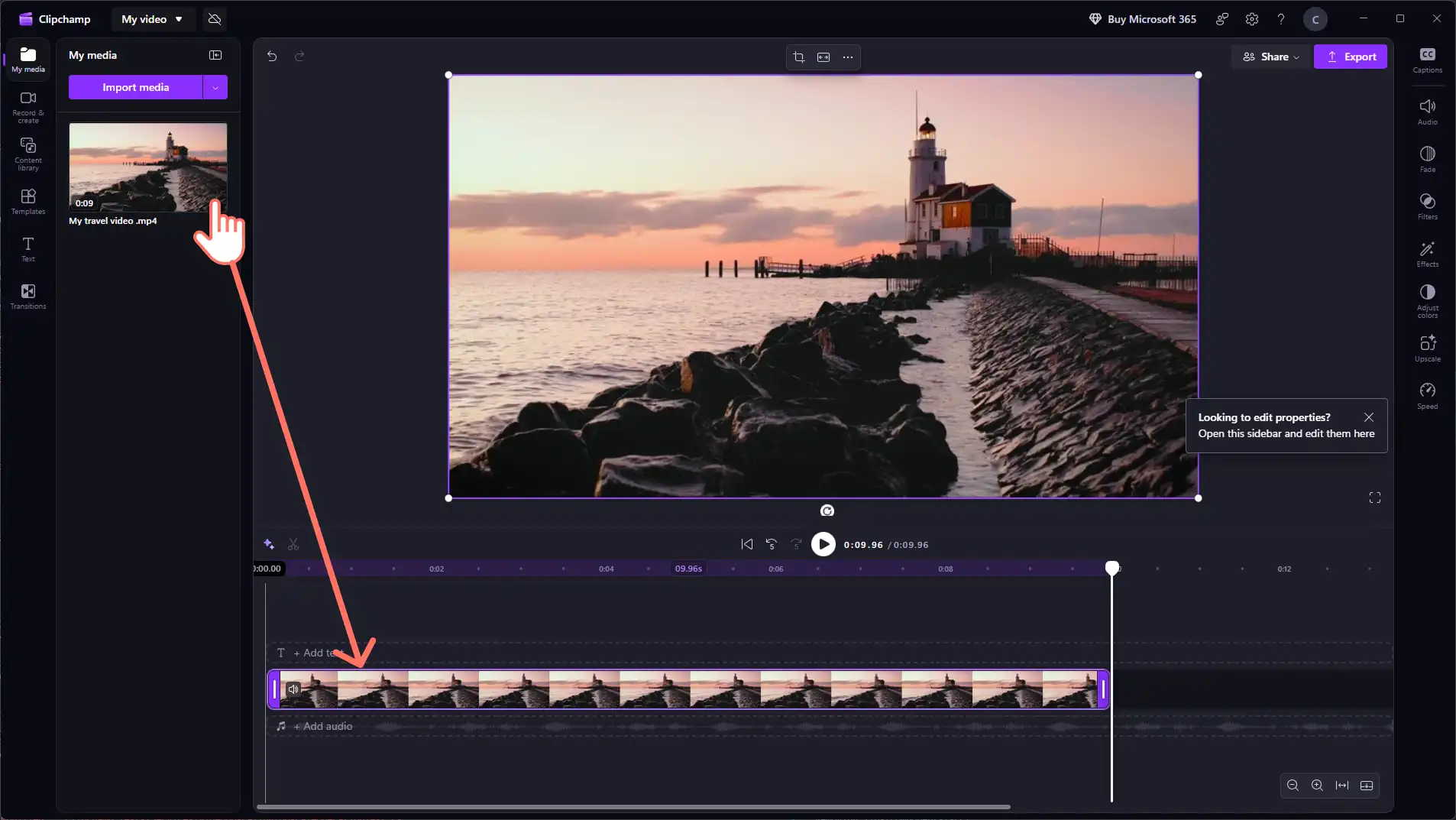
Next, drag and drop the video onto the timeline.
Step 2. Choose a higher video resolution
Select the video that needs to be upscaled, so it’s highlighted on the timeline. Navigate to the upscale tab in the property panel and select the quality drop-down menu to find the target video resolution ranging from 480p, 720p, 1080p, or 4K. Next, click the upscale button for the video to start processing.
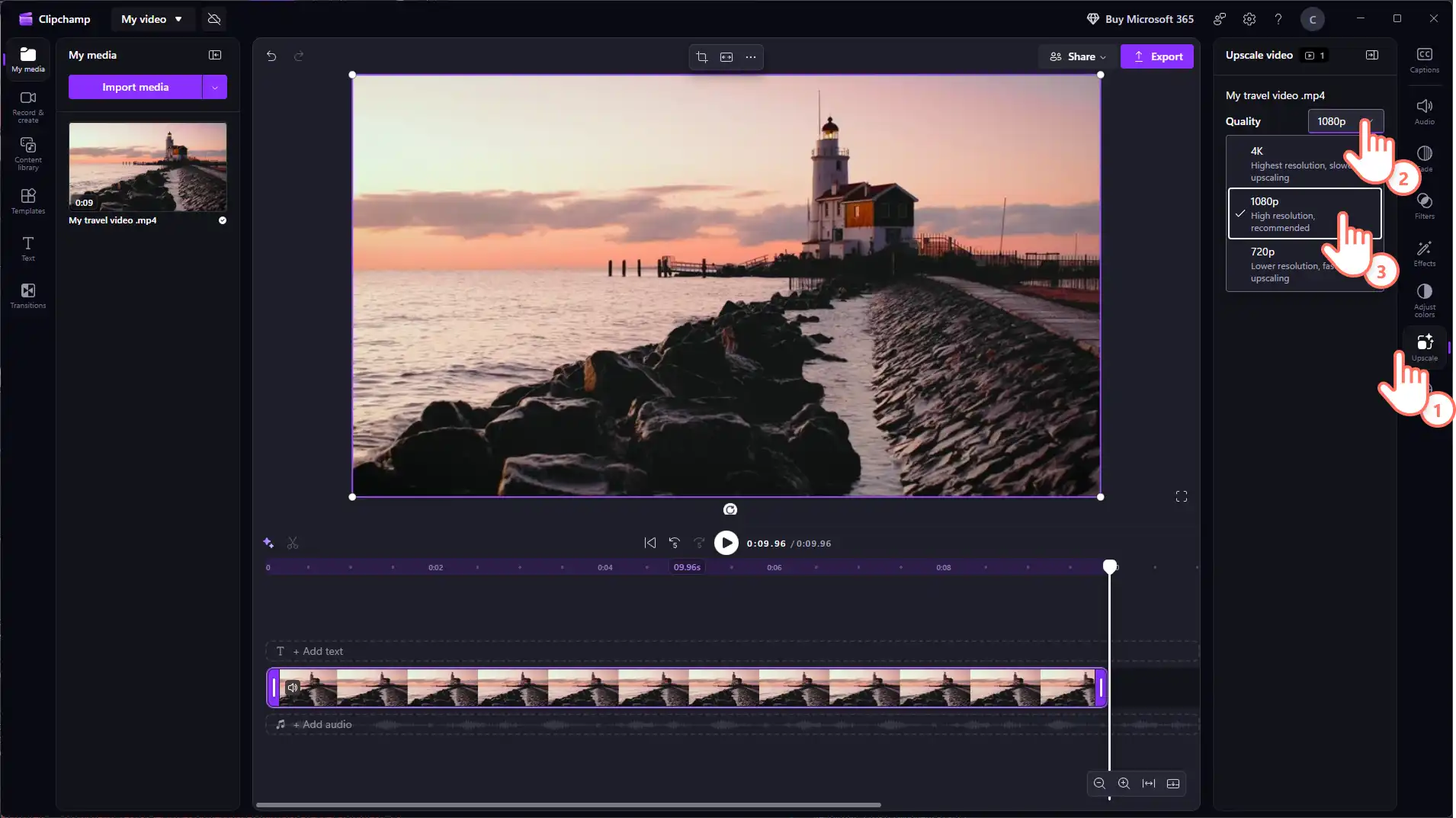
Note: only resolutions higher than the source video will appear as options.
Step 3. Preview and save the upscaled video
Play the upscaled video to compare the video resolution to the original file, and click the restore original button if needed.
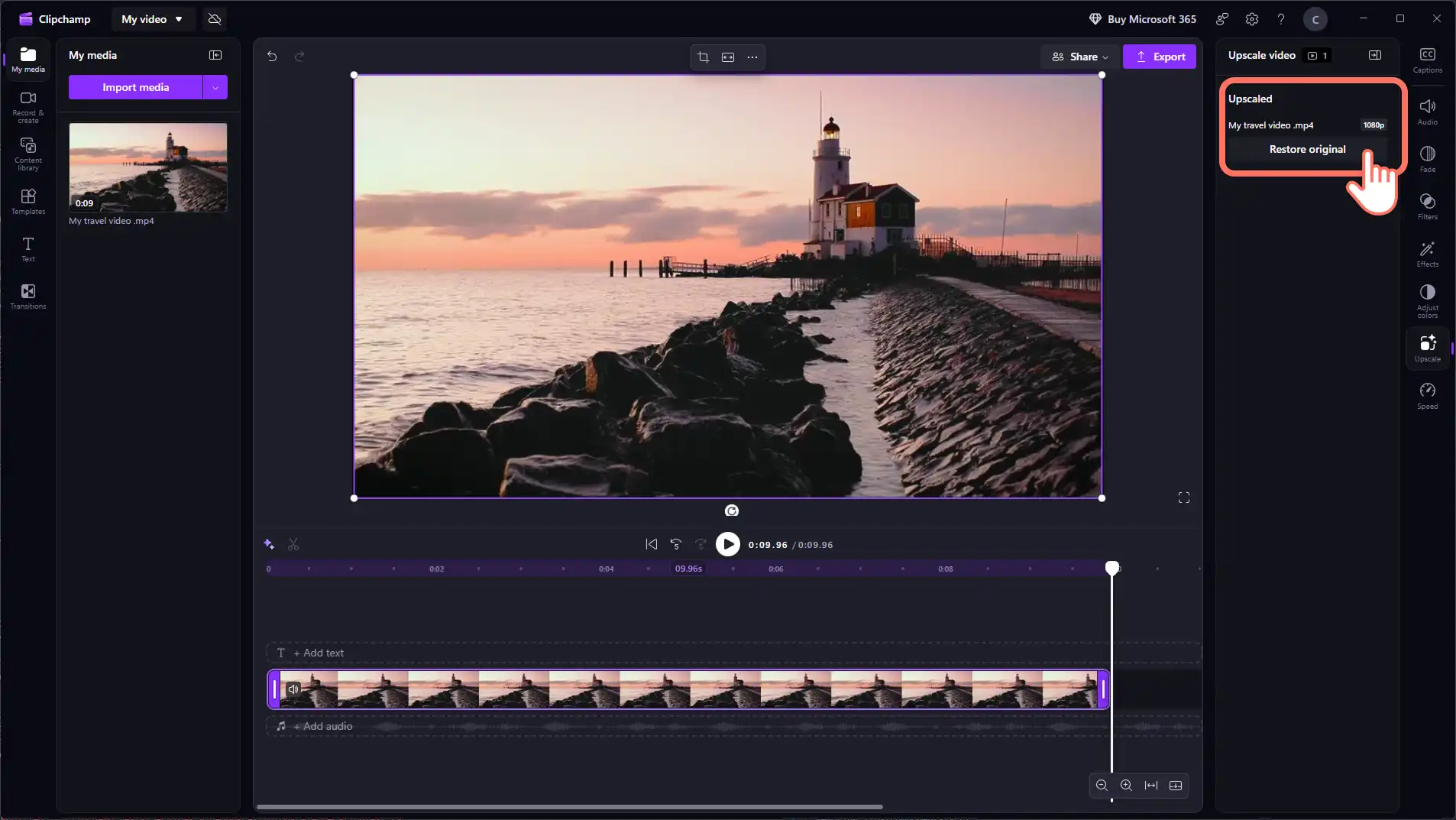
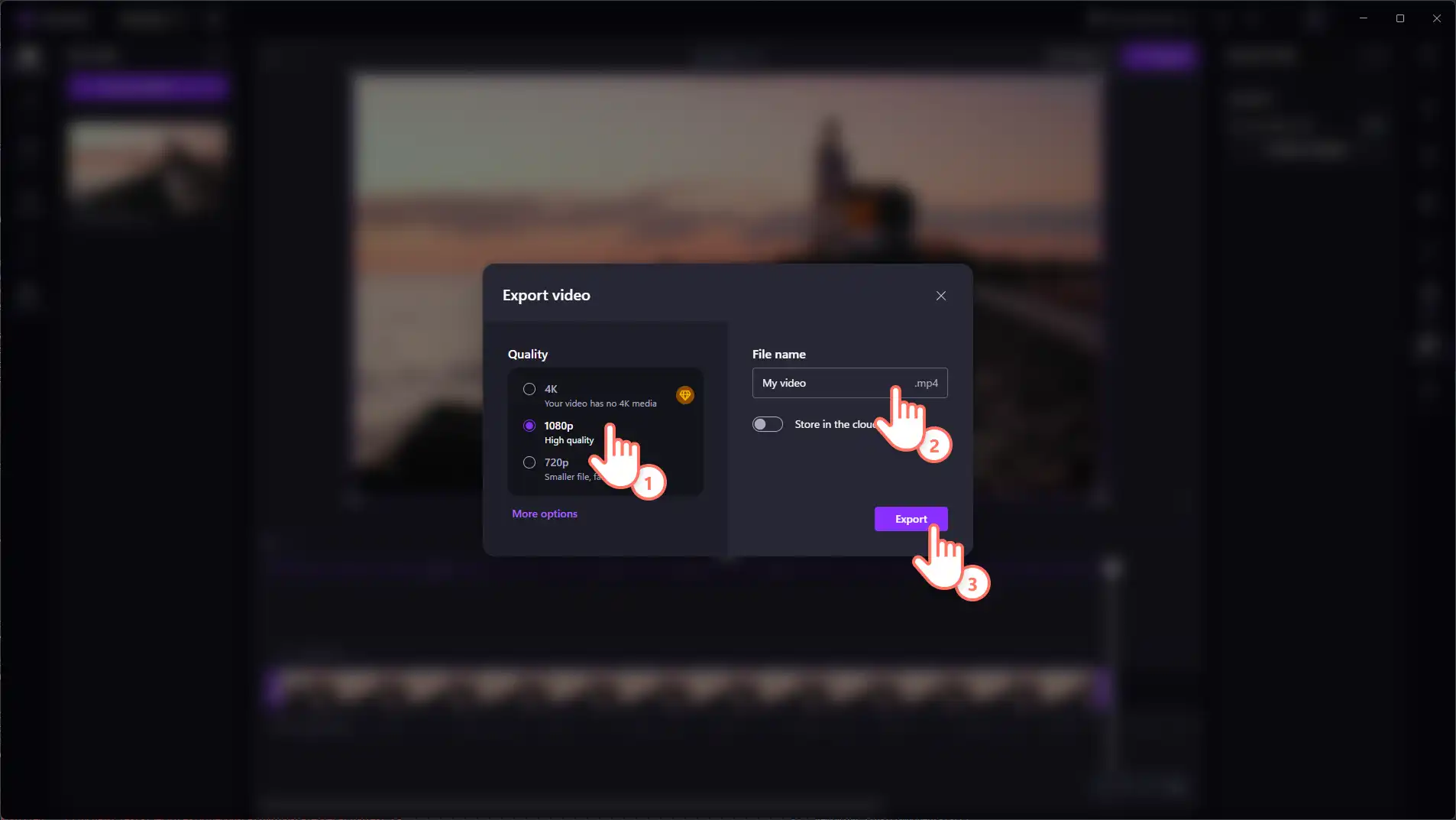
Continue editing the footage in Clipchamp using the easy video editor features. When it's ready to save, click on the export button and select the ideal video resolution to save the file online or directly onto the Windows device.
Three ways to use the AI video upscaler on Windows
Upload low resolution phone recordings from holidays to create sharper social media Reels and travel videos.
Enhance webcam recordings for demo videos and tutorials, so lower-resolution footage appears clearly next to screen recordings and text.
Standardize compressed event videos received through messaging apps to create a clearer look before adding them to a collage video.
Get started with AI video upscaling in the Microsoft Clipchamp Windows app, then continue editing to create videos worth sharing.
Explore more AI video editing tools like auto cut and AI text to speech generator to make every day video editing easier.
Frequently asked questions
- Can Clipchamp upscale a video to 4K?
Video Super Resolution can upscale an eligible video to a higher available resolution, including 4K. Clipchamp only shows resolution options that are higher than the original video.
- Is the upscale feature available on Clipchamp online?
Video Super Resolution is available on Microsoft Clipchamp Windows desktop app across personal, work, and school accounts. Availability also depends on whether Windows video upscaling is supported and enabled on the device. Learn more.
- What Windows devices can use Video Super Resolution?
Video Super Resolution is available on supported Windows 11 PCs. It can run on the CPU on compatible Windows 11 devices or use the NPU on Copilot+ PCs. Supported hardware includes AMD, Intel, and Qualcomm devices. Learn more.
- Can AI upscaling fix a blurry or low quality video?
AI video upscaling can make lower-resolution footage appear sharper and clearer. However, results depend on the original video, and upscaling can’t recover details that are missing from the source footage.
Heads up! The screenshots in this article are from Clipchamp for work accounts and the same principles apply to Clipchamp for school accounts. Clipchamp personal account tutorials may differ. Learn more.